
Installing Adobe CC on Managed MacBook
Step 1
Open your Mosyle Manager app and go to Self-Service.

Step 2: Install
On the left under Self-Service go to My Apps and to the right if you are licensed for our Adobe subscription, you should see the option to install Adobe Creative Cloud. Click install.

Step 3: Open
Once the application is installed, go to your app launcher or Finder > Applications and open the Adobe Creative Cloud app.

Step 4: Sign In
A window will load asking you to sign in with your district account. You will manually enter your email.
Do not sign in with Google, Facebook, or Apple.

Select Company or School Account.
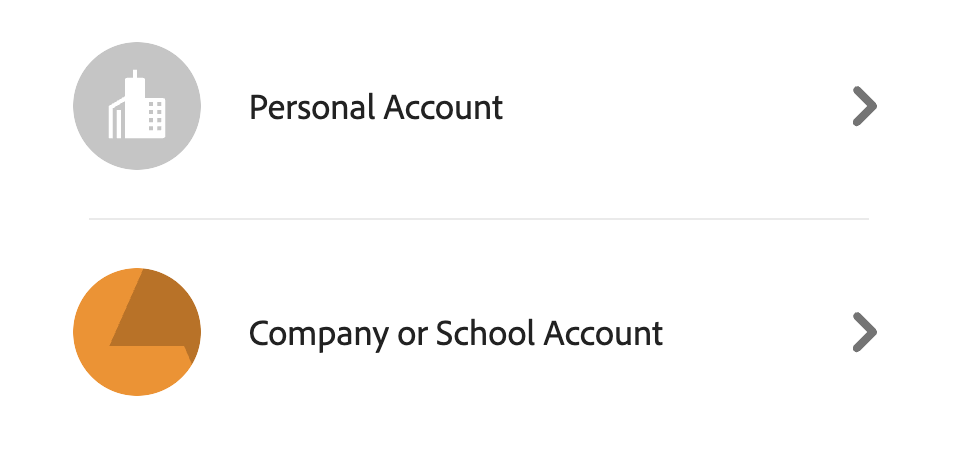
Enter your Microsoft password

If you don't know your Microsoft password please submit a ticket.
Step 5: Installing Apps
Once you're signed in you'll see your Adobe dashboard and on the left click on the Apps icon. Here you are able to install any of these products.

Once the application installs, you should be able to click Open and run the app.

If you have any issues with this process please submit a ticket.