# Adobe Creative Cloud

# Installing on Managed Device

# Installing Adobe CC on Managed MacBook

## Step 1

Open your Mosyle Manager app and go to Self-Service.

[![image.png](https://wiki.usd407.org/uploads/images/gallery/2026-03/scaled-1680-/yVfRLclMuUjGeWlQ-image.png)](https://wiki.usd407.org/uploads/images/gallery/2026-03/yVfRLclMuUjGeWlQ-image.png)

## Step 2: Install

On the left under Self-Service go to My Apps and to the right if you are licensed for our Adobe subscription, you should see the option to install Adobe Creative Cloud. Click install.

[![image.png](https://wiki.usd407.org/uploads/images/gallery/2026-03/scaled-1680-/B3Q9yTwBsXkdbJWF-image.png)](https://wiki.usd407.org/uploads/images/gallery/2026-03/B3Q9yTwBsXkdbJWF-image.png)

## Step 3: Open

Once the application is installed, go to your app launcher or Finder &gt; Applications and open the Adobe Creative Cloud app.

[![image.png](https://wiki.usd407.org/uploads/images/gallery/2026-03/scaled-1680-/merKGx2QJJVajK7R-image.png)](https://wiki.usd407.org/uploads/images/gallery/2026-03/merKGx2QJJVajK7R-image.png)

## Step 4: Sign In

A window will load asking you to sign in with your district account. You will manually enter your email.

<p class="callout danger">Do not sign in with Google, Facebook, or Apple. </p>

[![image.png](https://wiki.usd407.org/uploads/images/gallery/2026-03/scaled-1680-/6NSyFIY1IS28008b-image.png)](https://wiki.usd407.org/uploads/images/gallery/2026-03/6NSyFIY1IS28008b-image.png)

Select Company or School Account.

[![image.png](https://wiki.usd407.org/uploads/images/gallery/2026-03/scaled-1680-/zMYjcD1718wmA15s-image.png)](https://wiki.usd407.org/uploads/images/gallery/2026-03/zMYjcD1718wmA15s-image.png)

Enter your Microsoft password

[![image.png](https://wiki.usd407.org/uploads/images/gallery/2026-03/scaled-1680-/W7kyaFLe16Xz0RFd-image.png)](https://wiki.usd407.org/uploads/images/gallery/2026-03/W7kyaFLe16Xz0RFd-image.png)
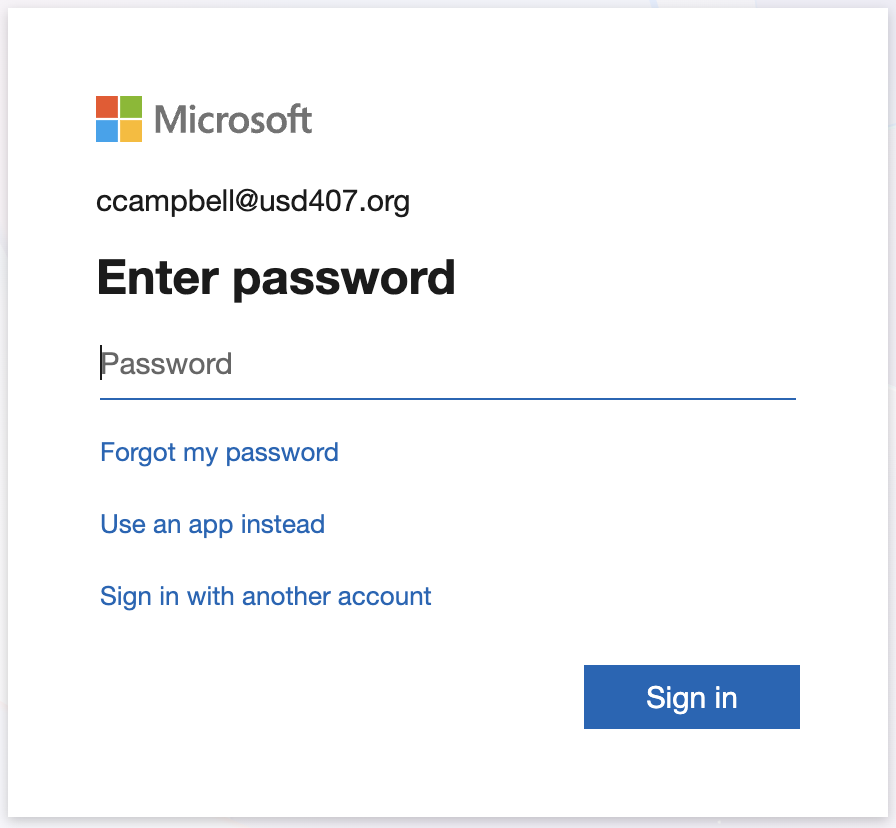
<p class="callout warning">If you don't know your Microsoft password please [submit a ticket](https://docs.google.com/forms/d/e/1FAIpQLScwLbjOj4VMPqHKFjLTQgoz0V2YdtUcpD999tiGppo61H4Rqw/viewform?usp=preview).</p>

## Step 5: Installing Apps

Once you're signed in you'll see your Adobe dashboard and on the left click on the Apps icon. Here you are able to install any of these products.

[![image.png](https://wiki.usd407.org/uploads/images/gallery/2026-03/scaled-1680-/jJW5yWUA0AT3DN4z-image.png)](https://wiki.usd407.org/uploads/images/gallery/2026-03/jJW5yWUA0AT3DN4z-image.png)

Once the application installs, you should be able to click Open and run the app.

[![image.png](https://wiki.usd407.org/uploads/images/gallery/2026-03/scaled-1680-/XzB2y0JDabEpxUbb-image.png)](https://wiki.usd407.org/uploads/images/gallery/2026-03/XzB2y0JDabEpxUbb-image.png)

<p class="callout info">If you have any issues with this process please [submit a ticket](https://docs.google.com/forms/d/e/1FAIpQLScwLbjOj4VMPqHKFjLTQgoz0V2YdtUcpD999tiGppo61H4Rqw/viewform?usp=preview). </p>